
PROCESSES
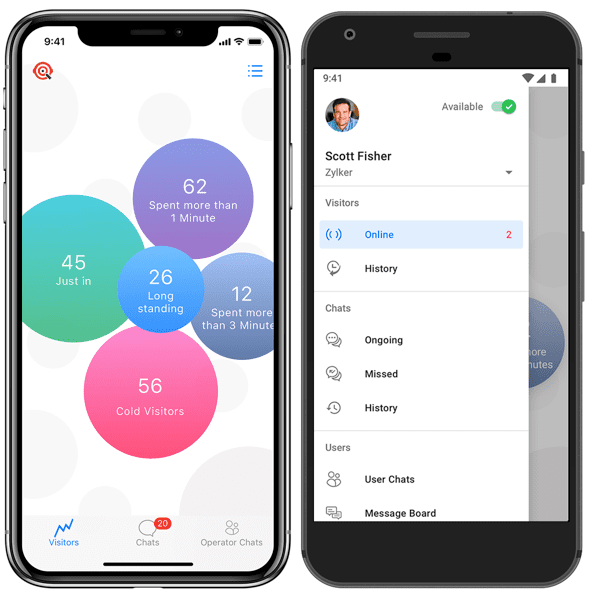
OVERVIEW OF SALES IQ
DASHBOARD WALKTHROUGH
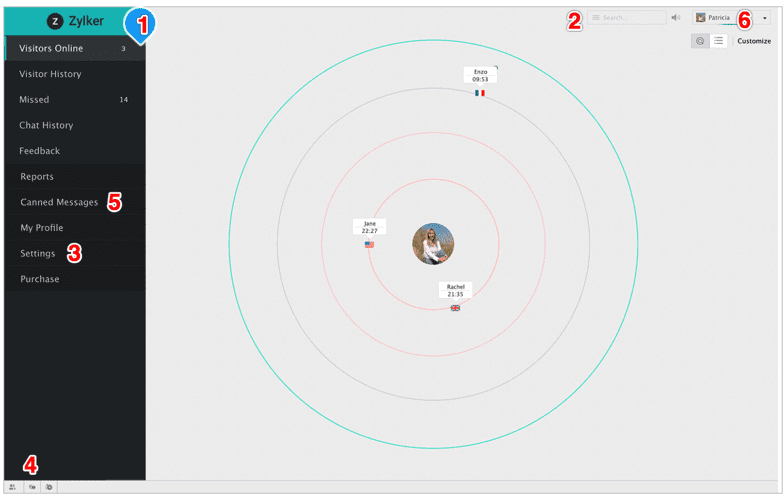
1. Navigate through the various operations of SalesIQ using the panel on the left.
2. The Search Bar quickly brings up past chats, canned messages and more.
3. Use the Settings option to update company info, set triggers, customise your data.
4. Get alerted of missed visitors and unassigned chats in the Notifications bar. Chat with other SalesIQ users in your organisation using the My Colleagues button.
5. Stay informed about the performance of your live chat operations with auto-consolidated Reports and analysis of visitor and user data.
6. Stay informed about the performance of your live chat operations with auto-consolidated Reports and analysis of visitor and user data.
TRACK ONLINE VISITORS
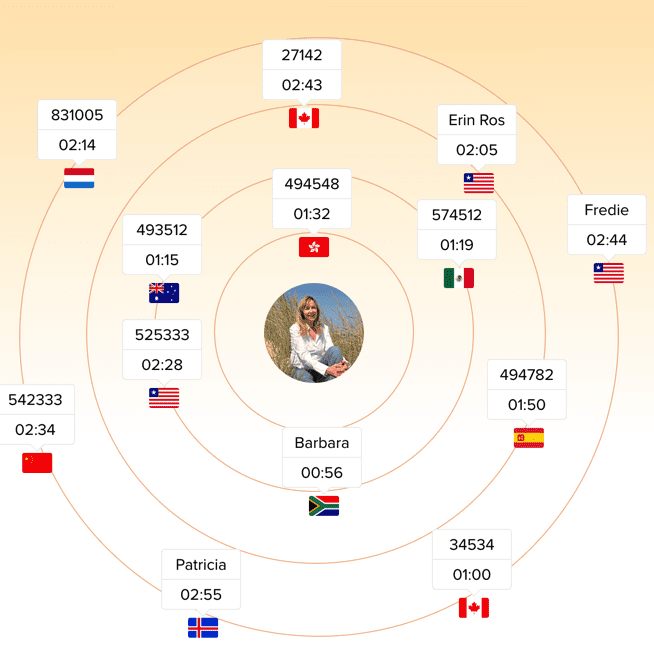
See when customers are online and tracking where they are in the buying cycle. The closer they are to the centre of the circle the more time they have been on the website, which means the more likely they are to being a customer.
To learn about your customer, click on their icon. The below information will appear.
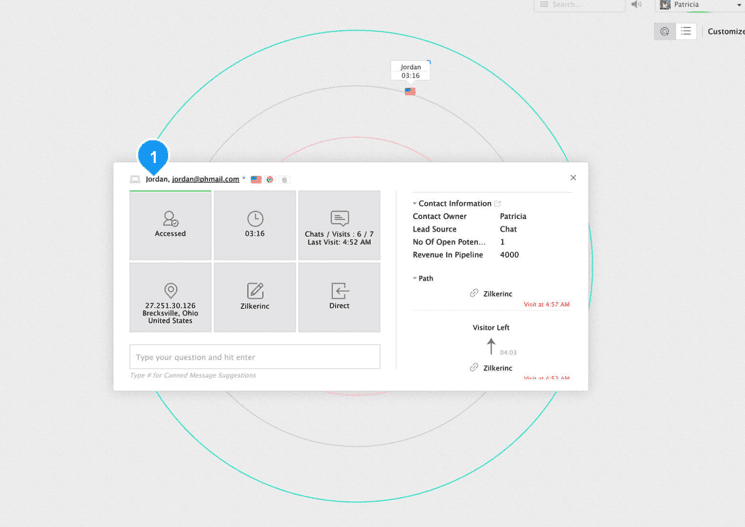
Here you can learn view a Visitor Footprint in real-time and assess a visitor's interests before initiating chat. All CRM and support information of a visitor, if available, is also displayed here.The more they interact with you the more data is collected. You can communicate with them directly see their chat history, see where they are from and what device they are using.The more they interact with you the more data is collected. You can communicate with them directly see their chat history, see where they are from and what device they are using.
ONLINE CHAT
When a customer uses our chat function on the website, you will be notified by Sales IQ with a ringing sound. A pop up will appear saying who the customer is and thier basic information. You then need to press ACCEPT to start to engage with the customer live. See image below.
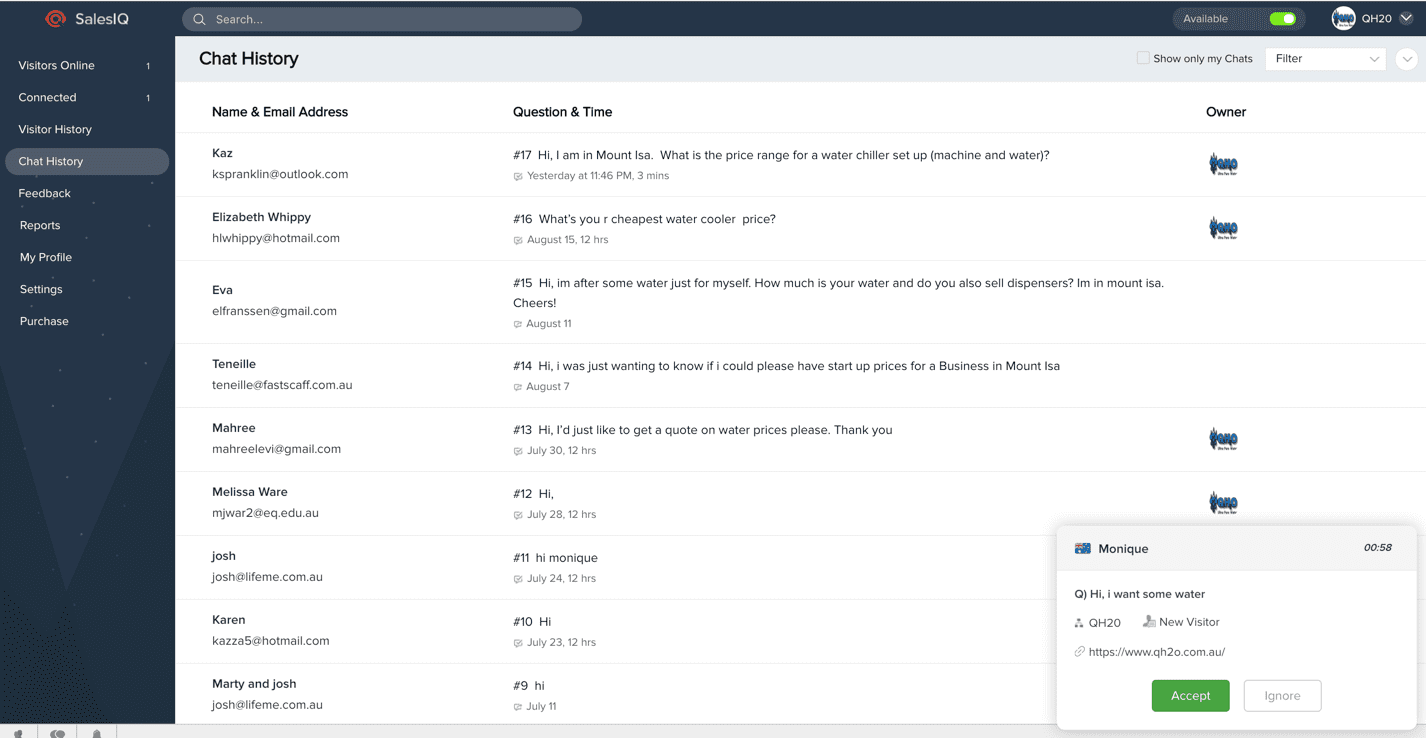
Once you press accept you will be taken to the chat page (website view is below).
You can now start messaging the customer.
You will also see on the right hand side of the page a breakdown of all the things we know about the customer so far.
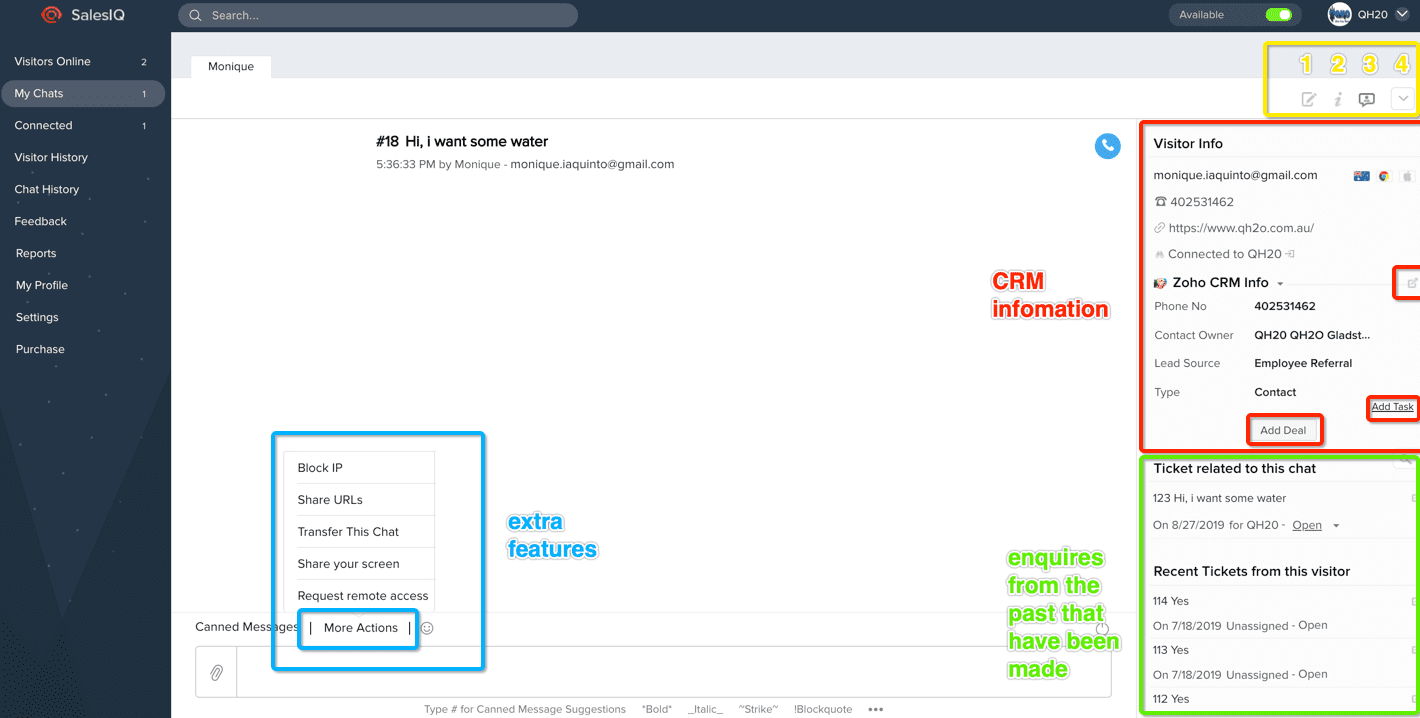
The Side Menu Bar:
Visitors Online - Shows you who exactly is online right now, how long they have been there and all their information.
My Chats - Chat conversations that are OPEN and active
Visitor History - A record of a customers history online
Chat History - Your inbox of messages
Feedback - At the end of every chat, the customer is asked to give feedback. If they do it will be recorded here.
Reports -All your stats in one place. reports can be viewed, emailed and saved as a document based on operators rating, Visitor handling time, Status, Regions and Department usage which can be filtered for any given range
My Profile -You can view your personal information here and make changes if required.
Settings - To be only accessed by management.
BLUE SECTION: EXTRA FEATURES
When engaging in chat with a customer you are able to do so much more than just communicate. Here you can share your screen, or even block a customer. You probably won't need to use these functions very often however if you needed to you are able to do so here.
YELLOW SECTION: ACTION BUTTONS
1 - Notes - place any notes here about the customer which will then be seen in the CRM
2 - Entire Summary of customer information
3 - Takes you back to the chat page
4- A drop down that allows you to print, save, send or see chat history.
RED SECTION: CRM
Summary of customer information stored in the CRM.
See how the customer lead information to let you know if they are new or existing.
Press the square button to open the CRM
To give customer a custom quote, press the add deal button
To make a task or reminder to do something associated with this customer in the CRM press add task.
GREEN SECTION: TICKETS
This area shows you all the chat history. Once a conversation has ended you need to mark it as OPEN or CLOSED from the drop down. If you leave it open you will know that you need to action a task before closing it. This is especially handy if another staff member needs to see the history of a customer and what actions have been made to ensure great customer service is taking place.